











The era of manual, repetitive command-line administration is rapidly giving way to a conversational IT experience. For years, managing a sprawling Microsoft 365 tenant meant maintaining libraries of complex scripts, memorizing hundreds of cmdlets, and carefully executing line after line of code. Today, the integration of Large Language Models (LLMs) with robust administrative frameworks is fundamentally changing how IT professionals interact with their digital environments. At the forefront of this transformation is the concept of a Model Context Protocol (MCP) Server designed specifically for Microsoft 365 automation.
By bridging the cognitive reasoning capabilities of advanced AI agents (like Claude or custom GPTs) with the execution power of the pnp powershell framework, organizations can shift from procedural scripting to intent-based management. Instead of writing a thirty-line script to audit site permissions, administrators can simply state their intent in natural language, relying on the MCP server to translate, secure, and execute the backend commands.
The Evolution of Microsoft 365 Management
To appreciate the gravity of AI-driven tenant management, we must first look at how SharePoint and Microsoft 365 administration has evolved. In the early days of on-premises deployments, administrators relied heavily on the Server-Side Object Model (SSOM) and complex farm solutions. As Microsoft pushed toward the cloud, this paradigm shifted to the Client-Side Object Model (CSOM) and REST APIs. A necessary transition, but one that left administrators wrestling with verbose, developer-centric code just to perform basic administrative tasks.
Recognizing the need for a more accessible, administrator-friendly approach, the Microsoft open-source community introduced the Patterns and Practices (PnP) framework. This initiative birthed the pnp powershell module, which has universally become the gold standard for managing M365 and SharePoint resources.
Unlike native modules that often require stringing together multiple complex REST calls, the pnp powershell module abstracts this complexity into intuitive, single-line cmdlets. Whether you need to update site collection properties, manage term stores, configure Entra ID groups, facilitate Scaling Dynamics 365 Integrations, or execute a bulk migration, this module simplifies the underlying API interactions. Because of its vast coverage, active community support, and robust authentication handlers, utilizing pnp powershell sharepoint commands is now the default architectural choice for modern tenant configuration. It is this exact command density and reliability that makes it the perfect foundational layer for an AI-driven MCP Server.
Understanding the Model Context Protocol (MCP)
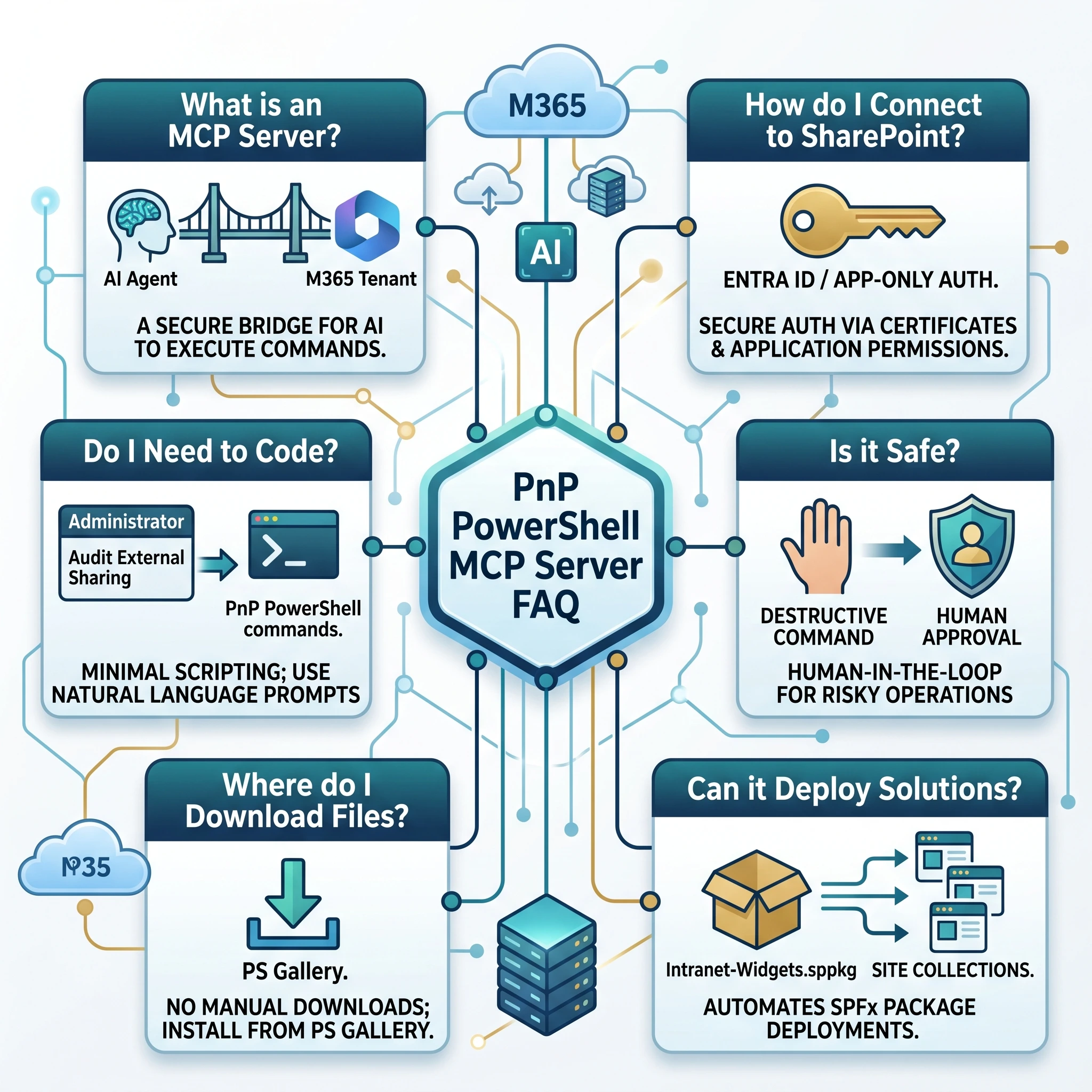
The Model Context Protocol (MCP) is an open standard designed to act as a secure, standardized bridge between AI models and external tools, datasets, or local execution environments. By itself, an LLM is isolated; it can generate text and write code, but it cannot directly interact with your live IT infrastructure. An MCP Server changes this by exposing local functions and scripts as consumable “tools” that the AI can call dynamically.
When you build an MCP Server around powershell sharepoint consulting online cmdlets, you are effectively giving the AI hands. The architecture works like this:
-
The Intent: The administrator types a prompt into their AI client: “Audit external sharing settings on all marketing sites and generate a CSV report.”
-
The Reasoning: The LLM processes the request, recognizes it needs tenant data, and identifies that the MCP Server provides a tool for running SharePoint queries.
-
The Translation: The AI formulates the necessary PowerShell syntax to fulfill the request.
-
The Execution: The MCP Server receives the payload, executes the script within a secure local or server-side context, and returns the output to the AI.
-
The Output: The AI reads the execution results and presents a conversational summary or a downloadable report to the user.
This architecture means the AI agent doesn’t just give you a script to copy and paste; it actively queries the tenant, reads the context, and executes the commands.
Setting Up Your Environment for AI-Driven Automation
Before an AI can execute commands on your behalf, the host machine running the MCP Server must be properly configured. Preparing a local or server environment requires ensuring you have the correct dependencies, the modern cross-platform version of PowerShell, and the proper module versions.
Historically, administrators would have to manually download sharepoint powershell installation files (.msi packages) from the Microsoft Download Center. Today, the modern ecosystem relies entirely on the PowerShell Gallery, making dependency management significantly easier and ensuring you are always running the latest patches.
Here is the step-by-step procedure to prepare your environment. First, ensure you are running PowerShell 7.x or later, as the modern PnP module relies on .NET Core for cross-platform compatibility (meaning it runs seamlessly on Windows, macOS, and Linux).
Open your elevated PowerShell console and execute the following commands to install pnp powershell securely:
# Set the execution policy to allow remote signed scripts
Set-ExecutionPolicy -ExecutionPolicy RemoteSigned -Scope CurrentUser -Force
# Uninstall legacy modules to prevent cmdlet conflicts
Uninstall-Module -Name SharePointPnPPowerShellOnline -AllVersions -Force -ErrorAction SilentlyContinue
Uninstall-Module -Name Microsoft.Online.SharePoint.PowerShell -AllVersions -Force -ErrorAction SilentlyContinue
# Install the modern PnP PowerShell module from the PSGallery
Install-Module -Name PnP.PowerShell -Repository PSGallery -AllowClobber -Force
# Verify the installation and check the version
Get-Module PnP.PowerShell -ListAvailable | Select-Object Name, Version
By standardizing your environment with these commands, you ensure that the MCP server has a clean, conflict-free runtime to execute the AI’s generated scripts.
Establishing the Connection
The most critical—and often most complex—administrative hurdle when bridging AI with external IT systems is authentication. An AI agent cannot bypass your organization’s security posture; it must authenticate securely, handle multi-factor authentication (MFA), and operate within defined permissions.
If you are wondering how to connect to sharepoint online with powershell via an automated agent, the answer lies in Entra ID (formerly Azure AD) App Registrations. While interactive logins are fine for human administrators, an MCP server requires headless, non-interactive authentication to function seamlessly.
Method 1: Interactive Human-in-the-Loop Authentication
For testing or scenarios where the AI drafts a script for the human to execute manually on their local machine, you will typically connect sharepoint powershell using interactive web logins. This supports MFA natively.
Connect-PnPOnline -Url “https://yourtenant-admin.sharepoint.com” -Interactive
Method 2: App-Only Authentication with Entra ID (Recommended for MCP)
To allow the AI’s MCP Server to execute commands autonomously, you must connect to office 365 sharepoint powershell using an Entra ID application. This involves creating an App Registration in your tenant, generating a self-signed certificate, assigning Sites. FullControl.All (or least-privilege equivalents) Microsoft Graph and SharePoint API permissions, and granting admin consent.
Once the App Registration is configured, the MCP server script can connect to sharepoint online silently using the Client ID, Tenant ID, and the local Certificate Thumbprint:
# Define connection variables
$AdminCenterUrl = “https://yourtenant-admin.sharepoint.com”
$ClientId = “12345678-abcd-1234-efgh-1234567890ab”
$TenantId = “yourtenant.onmicrosoft.com”
$Thumbprint = “A1B2C3D4E5F678901234567890ABCDEF12345678”
# Connect silently using Certificate Authentication
Connect-PnPOnline -Url $AdminCenterUrl -ClientId $ClientId -Tenant $TenantId -Thumbprint $Thumbprint
# Validate connection
Get-PnPTenantSite -Limit 5
By configuring the MCP server to authenticate this way, the AI operates under a strictly defined service principal. This ensures that every action taken by the AI is logged in the unified audit log under the App Registration’s identity, providing full traceability.
Real-World Use Cases: What Can the PnP MCP Server Do?
Once the environment is configured and the authentication bridge is established, the possibilities of combining AI reasoning with pnp powershell sharepoint execution are vast. Here are highly practical scenarios illustrating how this synergy transforms daily operations.
Scenario 1: Intelligent Site Provisioning
Site provisioning is a common request that often requires gathering requirements from stakeholders, determining the right template, and configuring initial permissions. With an MCP server, the administrator can simply prompt: “Create a new communication site for the Q3 Marketing Campaign. Set the owner to Megan Bowen and apply our corporate brand theme.”
The AI processes this natural language request, extracts the variables, and executes the underlying code:
# Code generated and executed by the AI via MCP
$SiteUrl = “https://yourtenant.sharepoint.com/sites/Q3Marketing”
$Owner = “meganb@yourtenant.onmicrosoft.com”
New-PnPTenantSite -Title “Q3 Marketing Campaign” -Url $SiteUrl -Owner $Owner -Template “SITEPAGEPUBLISHING#0”
Connect-PnPOnline -Url $SiteUrl -Interactive # AI utilizes established auth context
Set-PnPWebTheme -Theme “Corporate Brand”
The AI can then return a success message and the URL of the newly created site directly in the chat interface.
Scenario 2: Automated Solution Deployment
Deploying custom code, such as SharePoint Framework (SPFx) web parts, across multiple site collections is traditionally a tedious looping exercise. If a developer needs to push an update, they might ask the AI to deploy sharepoint solution powershell packages to all sites associated with a specific hub.
Prompt: “Upload the new Intranet-Widgets.sppkg to the tenant app catalog, deploy it, and install it on all sites connected to the HR Hub.”
The AI understands the relationship between app catalogs, hub sites, and site collections, generating and executing a script like this:
# Upload and deploy to the Tenant App Catalog
$App = Add-PnPApp -Path “./Intranet-Widgets.sppkg” -Publish -Overwrite
# Find all sites connected to the HR Hub
$HubSite = Get-PnPTenantSite -Detailed | Where-Object { $_.Title -eq “HR Hub” }
$AssociatedSites = Get-PnPTenantSite -Detailed | Where-Object { $_.HubSiteId -eq $HubSite.HubSiteId }
# Loop through and install the SPFx solution on each associated site
foreach ($Site in $AssociatedSites) {
Connect-PnPOnline -Url $Site.Url -ClientId $ClientId -Tenant $TenantId -Thumbprint $Thumbprint
Install-PnPApp -Identity $App.Id
Write-Output “Successfully installed widget on $($Site.Title)”
}
The LLM handles the logic, the looping, and the status reporting, saving the administrator from manually crafting the deployment loop.
Scenario 3: Synergy with the Power Platform
While Power Apps and Power Automate are excellent for user-driven workflows, standard connectors often lack the ability to perform deep, tenant-level administrative configurations (like modifying search schemas, managing hidden lists, or altering complex site property bags).
By hosting an MCP server on a secure virtual machine or within Azure Automation, developers can create AI agents that serve as an intelligent escalation tier for the Power Platform. If a Power Automate flow encounters a configuration requirement it cannot natively handle, it can trigger an API call to the AI agent. The AI can then execute the complex PnP PowerShell commands required, effectively bypassing the limitations of out-of-the-box Power Platform connectors.
Security, Governance, and the Human-in-the-Loop
The idea of allowing an autonomous AI to execute tenant-level commands naturally raises valid security and governance concerns. What happens if the AI hallucinates a command? What if an ambiguous prompt like “clean up old sites” is interpreted by the LLM as “delete all sites modified before 2020”?
To mitigate these severe risks, organizations must implement a strict “Human-in-the-Loop” (HITL) architecture within their MCP server design. In a HITL workflow, the AI is granted permission to query and read data autonomously (e.g., generating reports, checking statuses), but any command that performs a Write, Update, or Delete operation is intercepted by the server.
Instead of executing the destructive command immediately, the MCP server pauses execution, presents the exact PowerShell script to the human administrator via the chat interface or an approval dashboard, and requires explicit confirmation.
Furthermore, robust security relies on strict Role-Based Access Control (RBAC). The Entra ID application used by the MCP server should never be granted Global Administrator rights. Instead, rely on least-privilege scopes. If the AI is only supposed to manage user profiles, grant it User.ReadWrite.All. If it is only supposed to manage SharePoint sites, restrict it to Sites.Manage.All. By combining zero-trust authentication, granular API scopes, and mandatory human approval for critical actions, organizations can harness the speed of AI without compromising their tenant’s integrity.
The Future of M365 Automation and Next Steps
The integration of Large Language Models with administrative execution frameworks represents a fundamental shift in IT operations. By utilizing a Model Context Protocol Server to wrap the capabilities of modern PowerShell modules, administrators are no longer just operators of their tenant; they become orchestrators. This technology lowers the barrier to entry for complex automation, drastically reduces the time spent on repetitive tasks, and allows IT teams to focus on strategic architecture rather than syntax troubleshooting.
To truly understand the power of this conversational management paradigm, practical experimentation is vital. Provision a free Microsoft 365 Developer tenant, set up an Entra ID application with certificate-based authentication, and configure a basic MCP server to interact with your local PowerShell environment. Start with safe, read-only prompts—asking the AI to audit site storage or list external users—and gradually move toward automated provisioning. The transition from manual scripting to AI-assisted tenant management is already underway, and mastering these bridges now will define the next generation of cloud administration.