










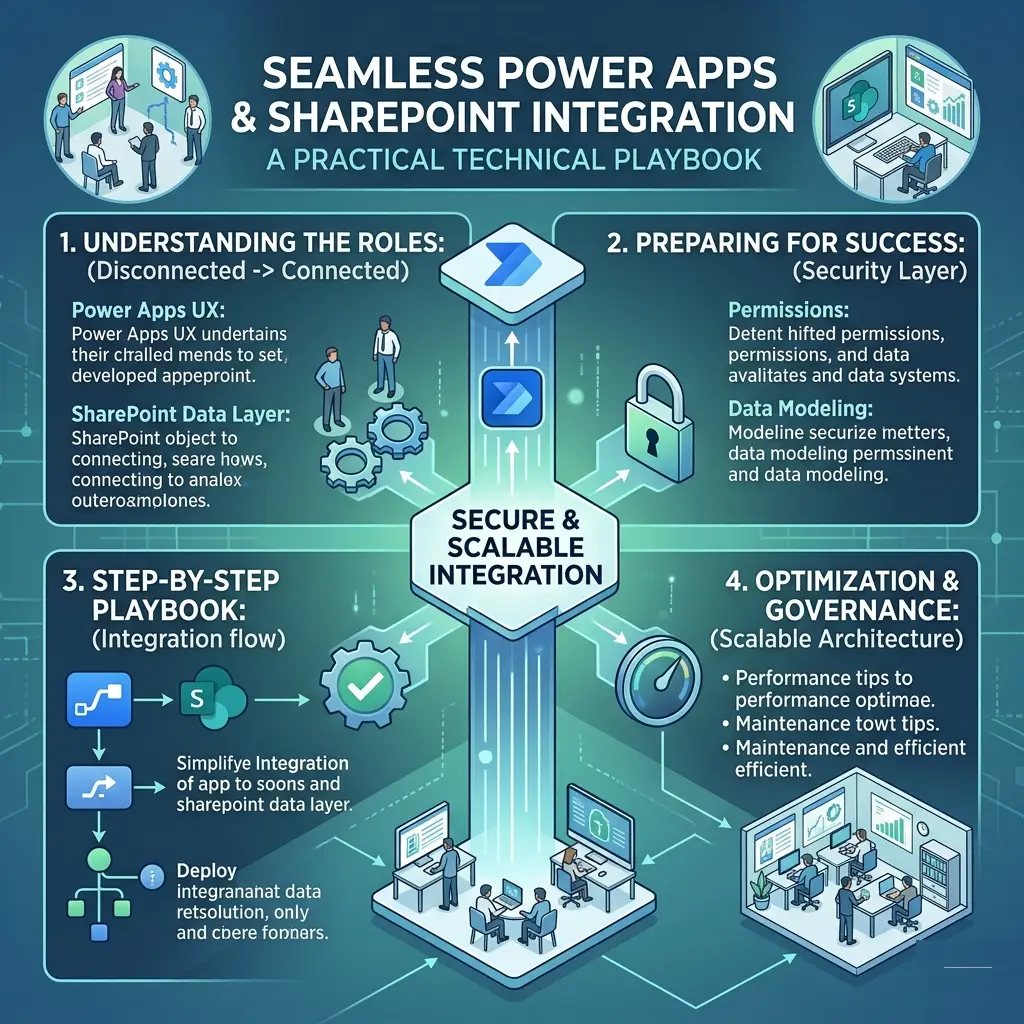
Modern organizations face relentless pressure to improve operational efficiency while maintaining strict governance, data integrity, and compliance. Yet, many enterprises remain bogged down by disconnected systems, manual approval cycles, fragile spreadsheets, and fragmented workflows. These friction points not only slow execution but also obscure visibility and introduce compliance risks.
As digital transformation strategies mature, IT leaders and enterprise architects are shifting away from massive, multi-year custom software deployments. Instead, the focus has pivoted toward agile, low-code solutions that optimize existing infrastructure.
Combining Microsoft Power Apps and Microsoft SharePoint represents one of the most effective strategies for achieving this goal. Together, these platforms allow organizations to build high-performance applications, centralize corporate intelligence, automate complex workflows, and elevate user experiences that all while significantly reducing the overhead, cost, and timelines associated with traditional software development.
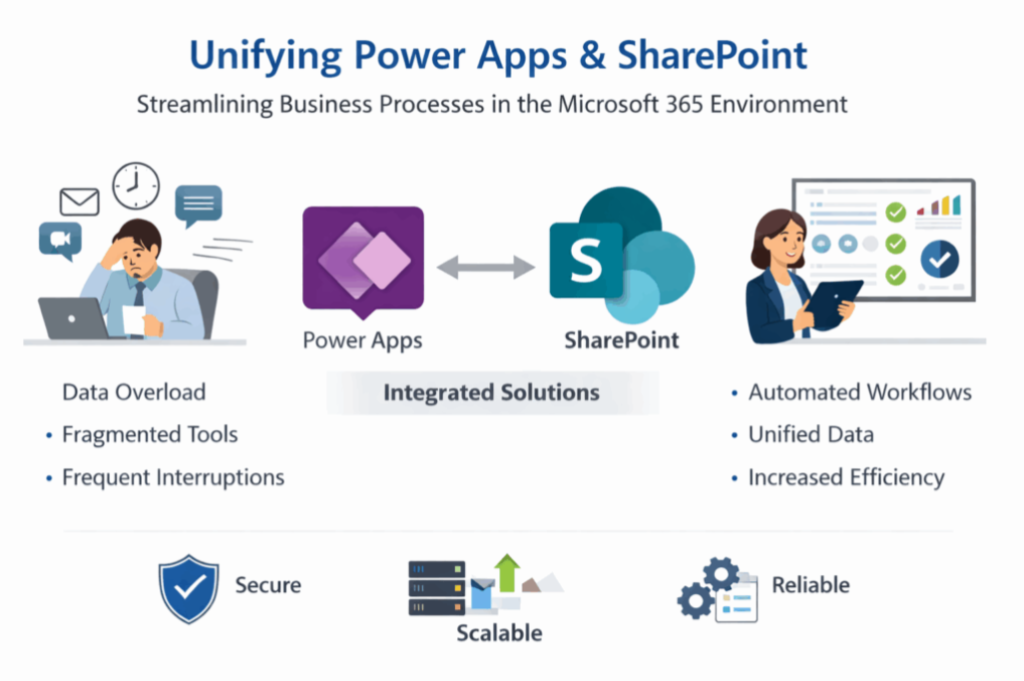
However, a seamless integration requires far more than dropping a few components onto a canvas and linking them to a SharePoint list. Building enterprise-grade, low-code ecosystems demands rigorous architectural design, intentional data modeling, ironclad security policies, and proactive governance.
This technical playbook provides an exhaustive, end-to-end framework for designing, implementing, and maintaining scalable Power Apps and SharePoint solutions.
Understanding the Role of Power Apps and SharePoint
To engineer an integrated solution capable of scaling to thousands of global users, you must first understand the technical boundaries and core competencies of each platform. System failures and performance degradation almost always stem from blurring these responsibilities.
What Power Apps Do?
Power Apps serves as the high-fidelity presentation and interaction layer of the Microsoft Power Platform. It replaces legacy web forms, paper trails, and desktop applications with responsive, cross-platform interfaces.
Its principal capabilities include:
Custom Business Applications: Crafting pixel-perfect, highly tailored web and mobile applications optimized for complex business processes.
Mobile-First User Experiences: Native support for device hardware, allowing field workers to leverage cameras, GPS coordinates, barcode scanners, and offline caching.
Workflow-Driven Interfaces: Dynamically adapting UI states, visibility, and input validation based on the active stage of a business process or the user’s organizational role.
Data Collection & Declarative Validation: Validating inputs directly at the user interface level via client-side logic before any payload is transmitted to the underlying backend.
Operational Dashboards: Aggregating disparate transactional records into real-time, actionable control panels for operational supervisors.
What SharePoint Contributes
SharePoint functions as an enterprise content management (ECM) system and data storage ecosystem. Within this architecture, it acts primarily as a highly structured, collaborative data layer.
Key architectural contributions include:
Collaborative Context: Providing out-of-the-box intranet portals, news publishing, and team collaboration spaces that contextualize business applications.
Structured Content & Data Storage: Hosting transactional data via SharePoint Lists and unstructured data via Document Libraries.
Granular Asset Management: Managing file versioning, check-in/check-out policies, document metadata, and retention schedules.
Native Security Infrastructure: Inheriting Microsoft 365 identity definitions to enforce security down to the specific site, library, list, or item level.
Where Both Platforms Complement Each Other
The most resilient enterprise solutions adhere strictly to a decoupled, layered architecture. By separating duties across the technology stack, you ensure that modifications to the user interface do not compromise the integrity of your underlying data or workflow engine.
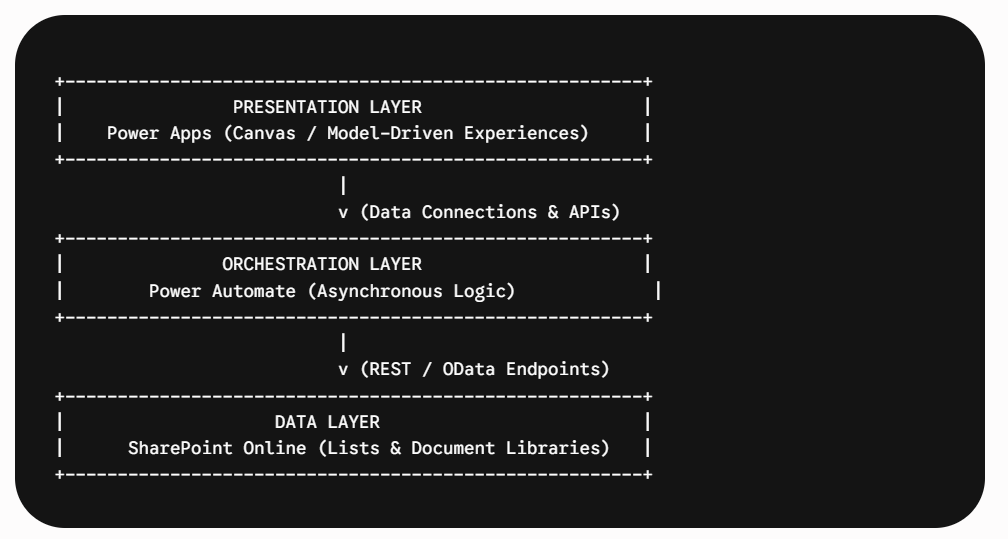
Data & Content Management (SharePoint): Holds schemas, handles raw storage, executes indexing, and manages access control lists (ACLs).
User Experience (Power Apps): Governs human-computer interaction, enforces business-facing input validation, and translates raw schemas into intuitive, brand-aligned interfaces.
Process Orchestration (Power Automate): Evaluates complex business logic asynchronously, dispatches approval matrices, routes system notifications, and syncs data across third-party lines of business.
Why Integration Matters More than Ever
The modern corporate landscape demands an immediate departure from stationary, desktop-bound workflows. Employees expect their enterprise toolkits to match the speed and responsiveness of consumer applications.
Integrating Power Apps and SharePoint addresses these expectations by resolving several critical operational challenges:
Mitigating Application Silos: Fragmented software suites isolate data, forcing workers to execute repetitive, cross-platform data entry. A unified interface ensures that data captured in the field flows directly into core information repositories.
Compressing Time-to-Value: Traditional software engineering cycles—encompassing procurement, dev-ops provisioning, environment scaffolding, and frontend compilation—can span quarters. The Power Apps/SharePoint integration compresses this timeline down to days or weeks.
Democratizing Development without Anarchy: By pairing low-code visual tooling with IT-sanctioned SharePoint environments, organizations empower business units to co-author solutions within a secure, managed perimeter.
Optimizing Total Cost of Ownership (TCO): Most enterprise Microsoft 365 licensing tiers include standard connectors for Power Apps and SharePoint. This enables businesses to roll out powerful business applications globally without incurring the costly premium licensing required for standalone database engines like Dataverse or SQL Server.
Core Integration Architecture Explained
To build a reliable solution, you must treat SharePoint not merely as a folder structure, but as a relational database foundation designed for scalability and governance. Meanwhile, Power Apps consulting ensures Power Apps operates as a highly optimized client application, delivering efficient performance, seamless user experiences, and stronger business outcomes.
SharePoint Lists as the Relational Data Layer
While specialized relational database management systems (RDBMS) utilize tables and foreign key constraints, SharePoint achieves similar structural outcomes through carefully configured Lists. Architects can leverage Lookup columns, Choice fields, and Hidden Index fields to build complex data schemas.
For instance, an enterprise Procurement application might feature a parent list for PurchaseOrders linked via unique identifiers to a child list named LineItems, while referencing a master list named VendorProfiles.
Power Apps as the High-Performance UX
Power Apps connects to SharePoint using the Microsoft 365 standard connection provider, which translates low-code canvas expressions (Filter(), LookUp(), Patch()) into highly efficient OData (Open Data Protocol) queries. The app acts as an interpreter, abstracting away complex API payloads and presenting users with clean galleries, data cards, and interactive forms.
Power Automate for Asynchronous Orchestration
Placing heavy synchronous business logic directly inside Power Apps degrades client-side responsiveness. Instead, developers should delegate resource-intensive operations—such as PDF generation, recursive looping, multi-stage approval routing, and transactional email dispatching—to Power Automate.
The application triggers a cloud flow using a lightweight JSON payload, immediately freeing the user interface to handle ongoing worker interactions.
Security and Governance Foundations
Security within this architecture relies on a hybrid model combining Power Platform environment configurations with SharePoint access controls.
Authentication is pinned entirely to Microsoft Entra ID (formerly Azure Active Directory), supporting multi-factor authentication (MFA) and conditional access policies out of the box. Data loss prevention (DLP) policies established at the tenant level guarantee that sensitive corporate information extracted from SharePoint cannot be leaked to unauthorized external connectors.
Preparing for Integration Success
Rushing directly into app development without baseline planning is the primary cause of project failure. Before writing a single formula, lay down a clear technical blueprint.
Defining Business Objectives and Scope
Document the precise scope of your process optimization. You must identify:
- The Baseline Problem: (e.g., “The current equipment inspection process requires field technicians to fill out paper forms, scan them, and email them to an administrator, taking 4.2 days per cycle.”)
- Target KPI: (e.g., “Reduce cycle time from submission to approval to under 4 hours, with zero paper overhead.”)
- User Persona Profiles: Determine whether users are primary office workers operating on multi-monitor desktops or field staff working on tablets with intermittent internet connectivity.
Evaluating Existing SharePoint Site Topologies
Avoid building business applications inside arbitrary team collaboration sites. Instead, establish a dedicated, isolated SharePoint Communication Site or a specialized Non-Group Team Site to act as the application’s clean backend. Evaluate the site collection limits, search schema configurations, and regional regional settings (such as time zones and locales) to ensure they match your application’s user base.
Planning Security Models and Scalability Boundary Constraints
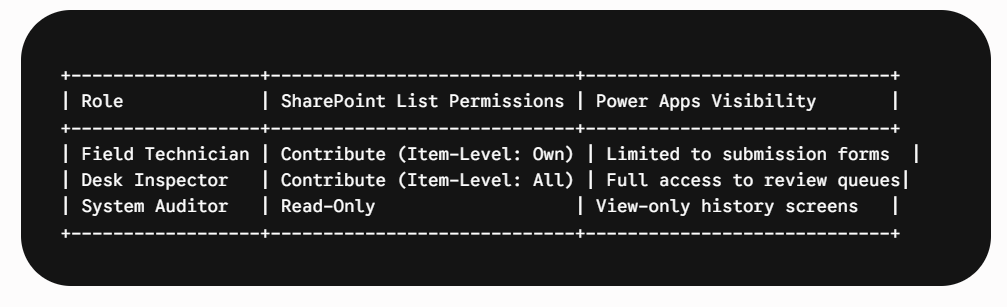
Map out an access matrix detailing who can read, create, modify, or delete data at each stage of the application lifecyle.
Important Architectural Rule: Power Apps executes actions using the security context of the end-user, not a system account. Consequently, if an application needs to write a record to a SharePoint list, the user running the app must possess write permissions to that underlying list.
If users should not see records created by their peers, you must configure the list’s Advanced Settings to restrict item-level reading and editing to the creator of the item.
Choosing Between Canvas Apps and Model-Driven Apps
The architectural nature of your user experience determines which Power Apps pattern you should select.
Canvas Apps
- Design Paradigm: Pixel-perfect control over every visual asset, coordinate, layout, and color.
- Data Sources: Ideal for connecting directly to SharePoint Lists, external file systems, and disparate REST APIs without schema restrictions.
- Best For: Consumer-facing aesthetics, highly interactive task-driven mobile apps, and scenarios requiring complex custom logic directly inside the UI.
Model-Driven Apps
- Design Paradigm: Component-driven design where layouts are automatically generated based on the underlying core data schema.
- Data Sources: Native dependency on Microsoft Dataverse.
- Best For: Heavy, relational back-office record management systems, complex end-to-end data pipelines, and situations where you have premium licensing available.
Playbook Recommendation: For standard SharePoint integrations budget-conscious organizations prefer Canvas Apps due to their inclusion in standard Office 365 licensing and extreme layout flexibility.
Step-by-Step Technical Playbook for Integration
This section provides a sequential framework for building an enterprise-ready, low-code integration from scratch.
Step 1: Design the SharePoint Data Model
Do not use spaces or special characters when defining column names in SharePoint. When you create a column called Project Status, SharePoint permanently sets its internal, immutable API name to Project_x0020_Status. This forces developers to use awkward, unreadable syntax inside Power Apps expressions.
Instead, follow this naming convention:
- Create the column using clean CamelCase syntax with no spaces (e.g.,
ProjectStatus). - Once saved, go back and rename the column display label to include spaces if needed (e.g.,
Project Status).
The underlying logical name remains clean (ProjectStatus), allowing your code to remain elegant and readable.
Furthermore, use the correct data types. Store choices as plain single-line text columns rather than SharePoint Choice columns if you expect heavy delegation requirements, as text matching is significantly faster and less restrictive over high-volume data connections.
Step 2: Prepare Lists, Libraries, and Structural Metadata
Set up your destination SharePoint site. Build out the operational lists based on your data model. If your app requires file or image attachments, decide whether to use standard List Attachments or route them into a dedicated SharePoint Document Library.
Document libraries are preferred for large files because they allow you to enforce metadata tagging, file-size compliance checking, and complex versioning rules that are unavailable inside standard list attachments.
Step 3: Establish the Connection Perimeter within Power Apps
Open the Power Apps Studio environment, navigate to the left-hand navigation menu, and select the Data icon. Click on Add data, search for the SharePoint connector, and select your connection instance.
Power Apps Studio -> Data Panel -> Add Data -> Search “SharePoint” -> Choose Site -> Select Lists -> Connect
Provide the explicit URL of your dedicated SharePoint site, select the specific transactional lists you designed in Step 1, and click Connect. Power Apps will automatically analyze the lists, map the column schemas, and expose the collections to your application’s declarative state engine.
Step 4: Construct High-Performance Input Forms and UI Components
Avoid relying on the default “Generate App” wizard, which creates rigid, poorly optimized three-screen architectures. Instead, construct your screens manually to maintain complete control over performance.
Add an Edit Form control (Form1) to your design canvas and set its DataSource property to your connected SharePoint list. Power Apps will instantly populate the form with corresponding Data Cards for each column. Change the layout settings from vertical to multi-column grids to maximize screen space for desktop users.
For critical user selections, swap out standard text input controls for custom Dropdowns or Combo Boxes with search filtering enabled, ensuring a smooth, intuitive data entry experience.
Step 5: Configure Power Automate Workflow Orchestration Engines
To handle background processing, select a component inside your app—such as a “Submit Application” button—and click Action > Power Automate > Create new flow. Select the Power Apps button trigger template.
Inside the Power Automate visual designer, add a SharePoint Create item action block. Pass parameters dynamically from Power Apps into the action block using the Ask in Power Apps utility.
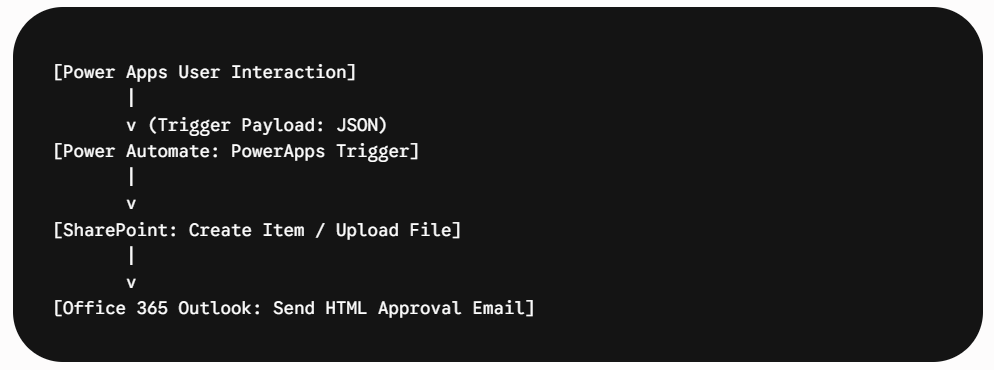
Follow this action block with a Start and wait for an approval action card. This approach guarantees that complex routing logic executes asynchronously in the cloud, so the user doesn’t have to wait with the application open while approvals are processed.
Step 6: Implement Advanced Security and Item-Level Policies
Enforce security at the data source rather than relying solely on the UI. Navigate to your SharePoint List settings, select Advanced settings, and modify the Item-level Permissions.
Set Read access to “Read items that were created by the user” and Create and edit access to “Create items and edit items that were created by the user” for workflows where users should only interact with their own submissions.
For administrative roles who require full visibility over all records, place them into a specific SharePoint Group granted Design or Full Control rights over the site collection, effectively overriding item-level restrictions.
Step 7: Comprehensive Testing and Optimization Framework
Execute rigorous end-to-end testing prior to deployment. Use the integrated Power Apps Monitor tool to trace every inbound and outbound network request, evaluating the response time and payload size of each OData call.
Test the application across multiple devices using the Power Apps mobile app to verify responsive design behavior, touch target sizing, and camera or file upload compatibility. Finally, log in using a test account assigned to a lower-privilege security tier to ensure that unauthorized users cannot bypass your interface configurations or view restricted data records.
Real-World Use Cases
The architectural patterns detailed in this playbook can be applied to a wide variety of standard enterprise workflows:
Comprehensive Employee Onboarding System
- The Power Apps Interface: A dynamic dashboard tailored for HR coordinators, managers, and new hires. It guides users through an asset selection checklist, policy sign-offs, and personal detail collection.
- The SharePoint Backend: A core list tracking the onboarding status of each employee, connected to an isolated document library that stores signed employment contracts and identification documents.
- The Automation Layer: Power Automate monitors the creation of new onboarding records, provisions asset provisioning tasks in Microsoft Planner, sends notification alerts to IT support teams, and routes equipment approval forms to line managers.
Mobile Field Service and Inspection Requests
- The Power Apps Interface: A mobile-optimized canvas application utilized by field inspection engineers working in remote facilities. It leverages the device camera to capture asset deficiencies and uses geolocation tracking to verify inspection sites.
- The SharePoint Backend: An indexed list storing time-stamped inspection records, damage logs, and repair priority classifications.
- The Automation Layer: An automated flow triggered immediately upon submission. It checks the damage classification rating; if marked as “Critical,” it bypasses normal queues to instantly send SMS alerts and urgent email tickets to facility managers.
Enterprise Document Approvals and Lifecycles
- The Power Apps Interface: A centralized portal for submitting corporate policies, marketing assets, or legal agreements for review. It features side-by-side metadata inputs and file preview windows.
- The SharePoint Backend: A document library with mandatory metadata categorization fields, strict versioning controls, and content approval rules enabled.
- The Automation Layer: A multi-stage approval workflow that moves files through sequence-dependent approval groups (e.g., Legal review followed by Executive sign-off), stamping approved documents with official electronic approval signatures before moving them into read-only archive states.
Performance Optimization Techniques
Performance bottlenecks are the single largest source of user frustration and low adoption rates. When an app connects to a dataset that grows over time, you must write optimized code to prevent performance degradation.
Delegation Best Practices
Delegation occurs when Power Apps offloads processing tasks to the underlying data source. Instead of pulling thousands of rows over the network to filter them locally, Power Apps hands the processing query directly to SharePoint, which returns only the matching records.
If you write a query that cannot be delegated, Power Apps will display a yellow warning triangle during development. By default, non-delegable queries will only evaluate the first 500 records in your data source (though this can be increased to a hard limit of 2,000 in your app settings). Any matching records that sit beyond this limit will be completely ignored by the query.
Delegable Operators vs. Non-Delegable Operators
- Delegable:
Filter(),Sort(),LookUp(), and operators like=,StartsWith(), and logical comparisons (<,>). - Non-Delegable:
Search(),In,Choices(),CountRows(), and math functions likeSum(),Average().
Optimized Code Pattern Example:
// BAD: This non-delegable query forces local evaluation and will fail on lists larger than 2,000 rows.
Filter(EquipmentInspections, Text(InspectionDate, “yyyy”) = “2026”)
// GOOD: This delegable query offloads the processing directly to SharePoint, ensuring instant results across large lists.
Filter(EquipmentInspections, InspectionDate >= Date(2026, 1, 1) And InspectionDate <= Date(2026, 12, 31))
Reducing API Latency and Data Retrieval Overhead
Every network request introduces latency. To make your application significantly faster, cache slow-moving static data locally inside the application’s memory during startup rather than querying the database repeatedly.
Optimized Lifecycle Pattern Example:
// Place this inside the App.OnStart property
Concurrent(
ClearCollect(LocalCostCenters, ‘Cost Centers List’),
ClearCollect(LocalRegions, ‘Regional Operating Sites’),
Set(CurrentUserProfile, User())
);
Using the Concurrent() wrapper ensures that these separate network operations execute in parallel, dropping your application’s initial load time by up to 60%.
Managing Large Datasets with Indexed Columns
When a SharePoint list grows beyond 5,000 items, it hits the Large List Resource Throttling Limit. If a query runs against a non-indexed column in a list that exceeds this size, the query will be blocked entirely by SharePoint to protect database performance.
To prevent this issue, navigate to your SharePoint List Settings > Indexed Columns, and add indexes to any columns frequently used for filtering or sorting within your Power Apps (such as status flags, user identifiers, or date boundaries). This ensures your queries remain fast and reliable even as your list grows to 20,000+ records.
Governance and Long-Term Maintenance
An unmanaged low-code environment quickly devolves into an unstable mess of duplicate, orphan applications and broken data connections. Establishing an operational governance model is critical for long-term sustainability.
Environment Management and Lifecycle Strategy
Never build production applications inside the Default Power Platform environment, as all licensed users have creation rights there. Instead, set up an isolated environment strategy managed by your IT administrators:
[Development Environment] —> [User Acceptance Testing] —> [Production Environment]
- Development: A sandbox environment where application creators build, modify, and experiment with new application features without impacting day-to-day operations.
- UAT (User Acceptance Testing): A dedicated staging environment where business owners and testers validate application updates against real-world scenarios.
- Production: A highly locked-down environment where end-users run verified, stable versions of the application. Changes here are strictly controlled via formal application packages.
Monitoring Adoption and Performance
Leverage the Power Platform Admin Center dashboards to track user engagement metrics, active session counts, error frequencies, and connector usage profiles. Identify underperforming applications that generate high quantities of API faults or run into recurring delegation errors, and route them to your development teams for optimization.
Documentation Standards and Solution Manifests
Every integrated solution must be accompanied by a lightweight system documentation file stored within a secure IT repository. This file should clearly define:
- Data Lineage Schema maps: Documenting all connected SharePoint sites, specific list dependencies, and internal column data types.
- Trigger Conditions: Listing all linked Power Automate cloud flows along with their trigger criteria and error notification paths.
- Security Access Groups: Clearly defining the Entra ID security groups or SharePoint roles required to grant user access.
- Developer Release Logs: Documenting version history, known workarounds, and pending feature expansions.
Common Integration Mistakes to Avoid
Avoid these frequent pitfalls when building integrated systems:
- Overengineering the Architecture: Avoid building massive, multi-page applications that try to manage every single business function simultaneously. Instead, break your solutions down into a collection of smaller, highly focused, task-driven applications that connect to shared backend data layers.
- Ignoring User Permissions: Assuming that because an app interface hides a button, the user cannot access the underlying data source is a critical security mistake. If a tech-savvy user discovers the backend SharePoint URL, Also take a look at SharePoint consulting services where we are offering too many things. they can bypass your app’s UI elements entirely. Always secure the backend lists directly using SharePoint’s native access control lists.
- Failing to Plan for Change Management: Building an technically flawless application means nothing if your team refuses to use it. Involve your end-users early in the design phase, run interactive training sessions, and actively incorporate their feedback into your development cycles to drive strong adoption.
Future Trends for Power Apps and SharePoint
The Microsoft 365 ecosystem continues to evolve, bringing new capabilities to low-code integrations:
- AI-Assisted App Development (Copilot): Application designers can now leverage integrated natural language models to generate complex formulas, design responsive screen components, and write automated data pipelines simply by describing what they want to build.
- Intelligent Automation Processes: Next-generation Power Automate triggers feature advanced optical character recognition (OCR) and machine learning capabilities out-of-the-box. This allows workflows to extract structured data from scanned invoices or unstructured PDFs and input it directly into SharePoint without human intervention.
- Deep Integration with Microsoft Teams and Loop: Applications and data layers are moving past standalone browser tabs. The focus has shifted toward building contextual, card-based micro-apps that sit directly inside daily communication threads and chat windows.
Final Thoughts: The Low-Code Paradigm Shift
Integrating Power Apps and SharePoint is far more than a convenient feature within the Microsoft 365 ecosystem; it represents a fundamental paradigm shift in how modern enterprises approach digital transformation. By collapsing the traditional walls between custom frontend design and scalable data management, this combination allows organizations to dismantle manual, disjointed processes at a fraction of the historical cost and timeline.
However, as this technical playbook underscores, the true differentiator between a fragile workaround and a resilient, enterprise grade solution lies in your architectural discipline. Treating SharePoint with the same relational respect you would afford a traditional database and designing your Canvas apps with strict attention to delegation, security, and performance constraints guarantees an ecosystem that scales seamlessly alongside your business operations.
Technology alone cannot fix a broken corporate process, but a well architectured, highly intuitive low code solution can completely transform how your people collaborate. By investing in deliberate planning, ironclad security policies, and proactive governance today, you lay the groundwork for an agile, automated workplace capable of adapting to whatever operational demands tomorrow brings.